Ticket Account Management
Your phone is your ticket. Access your tickets on the official Bay FC Mobile App and gain seamless entry into every Bay FC home match.
For online account management instructions, follow the steps in the tutorial below.
Ticket Management Tutorial
View this video or follow the screenshots below for step-by-step instructions on accessing your tickets for a Bay FC home match.
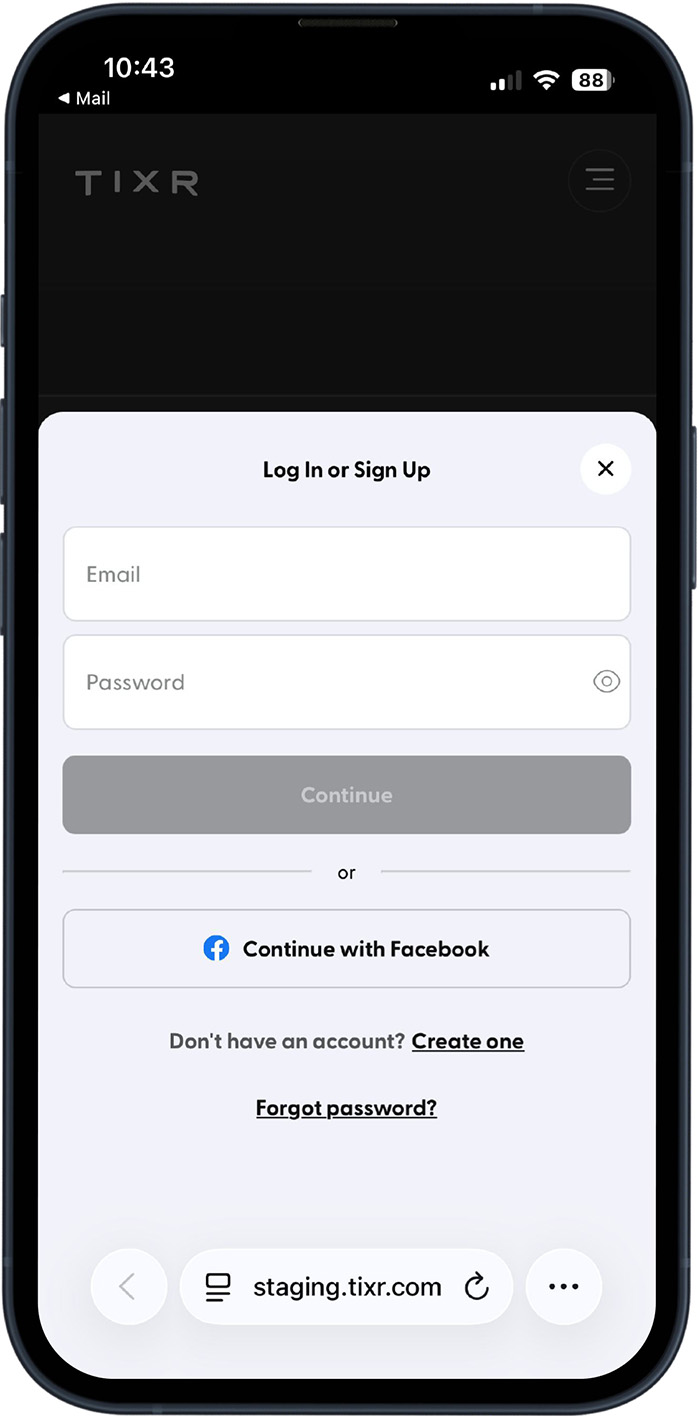
Step 1
Visit bayfc.com/mytickets and sign in to, or create, your Tixr account.
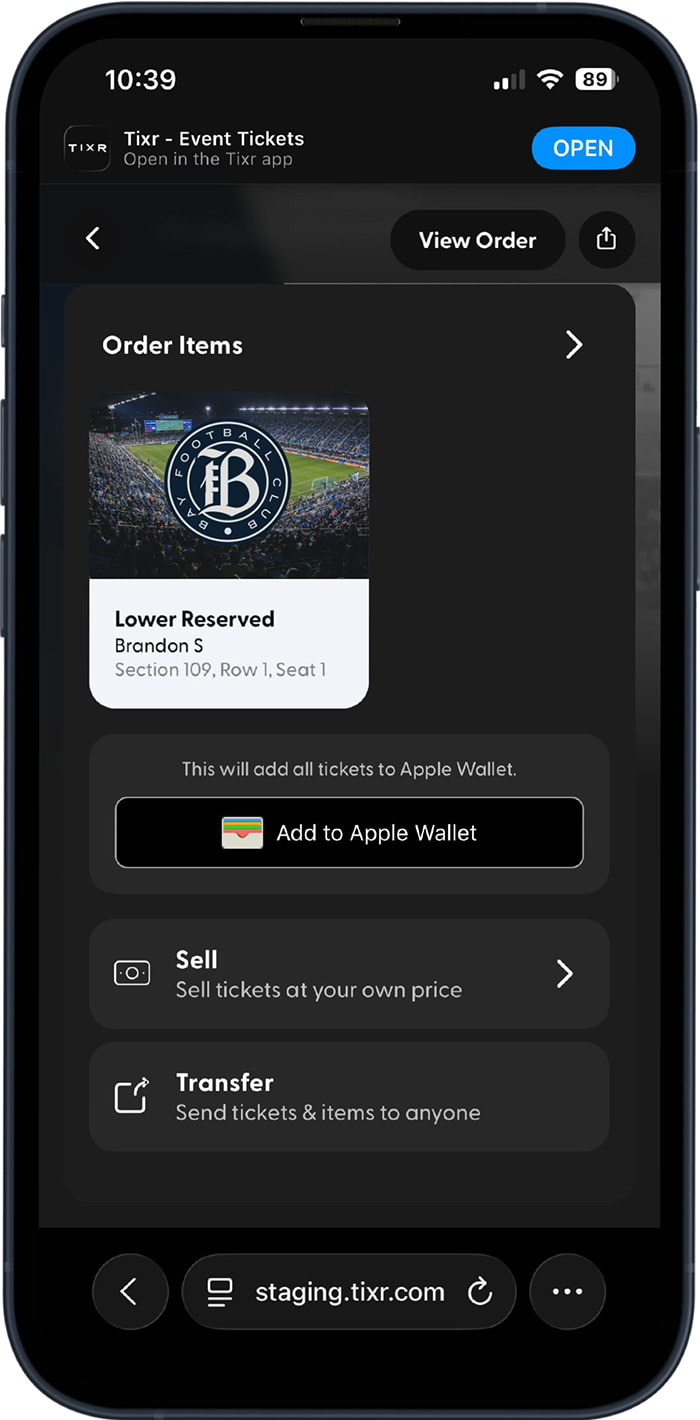
Step 2
Once signed in, you’ll see a list of all your events/tickets.
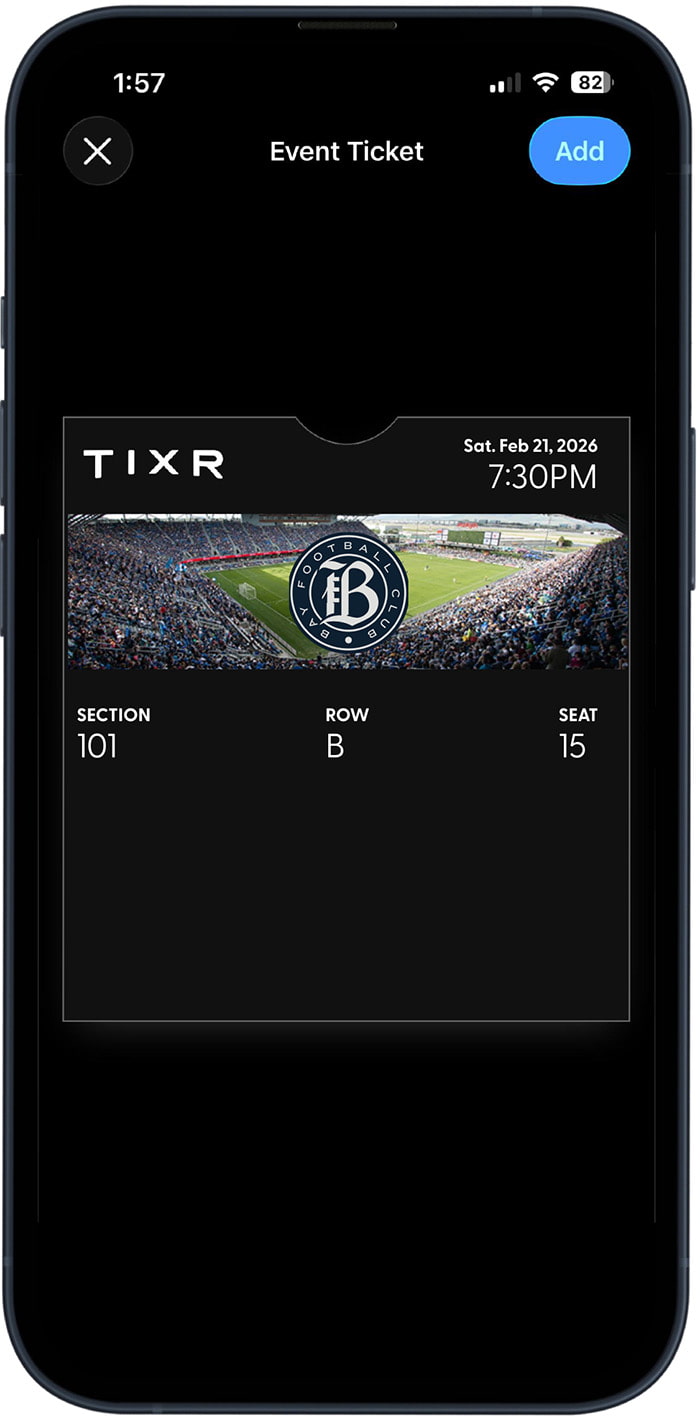
Step 3
Tap on the correct match to view barcodes and/or add your tickets to your Apple or Google Wallet for seamless entry.
View this video or follow the screenshots below for step-by-step instructions on transfering ticket(s) for an individual match to another person.
Step 1
Visit bayfc.com/mytickets and sign in to, or create, your Tixr account.
Step 2
Once signed in, you’ll see a list of all your events/tickets.
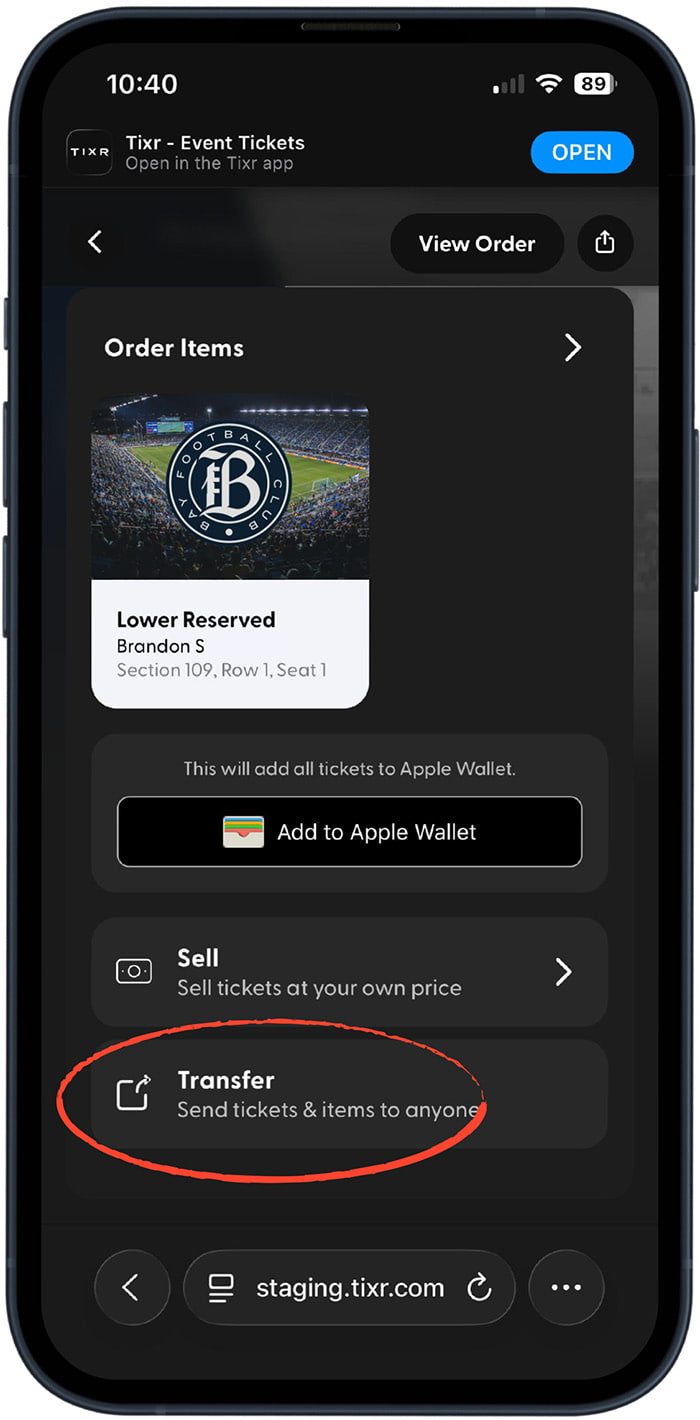
Step 3
Select the match for which you want to transfer your ticket(s) and choose the “Transfer” option.
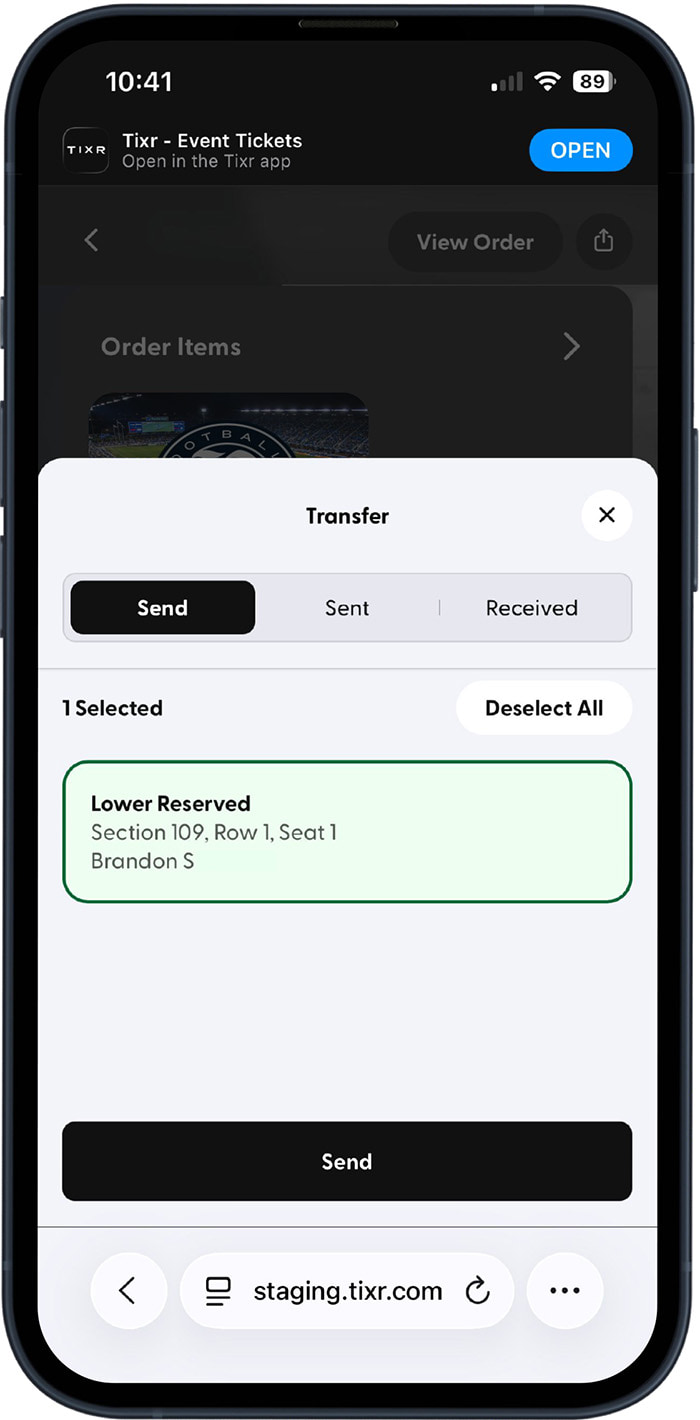
Step 4
Select the ticket(s) you want to send.
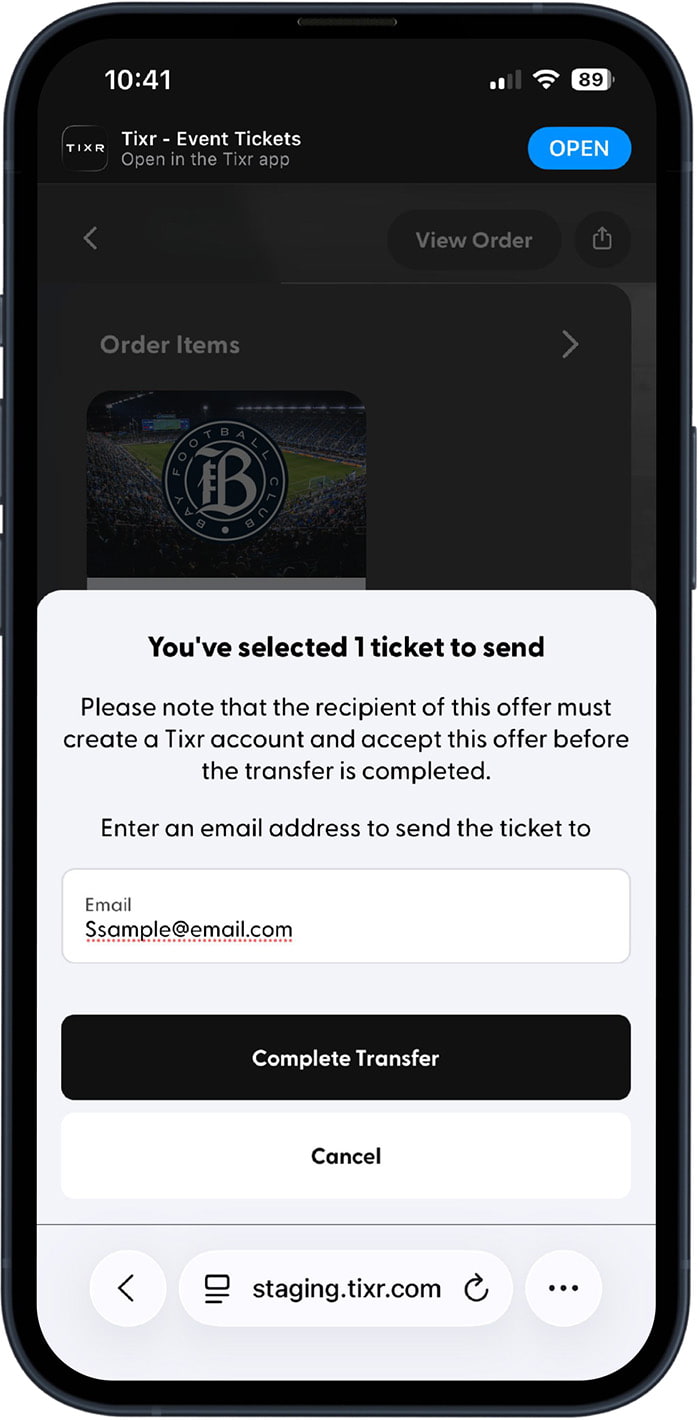
Step 5
Enter the email address of the ticket(s) recipient and select “Complete Transfer” … This will trigger an email to the recipient that initiates the ticket(s) accepting process.
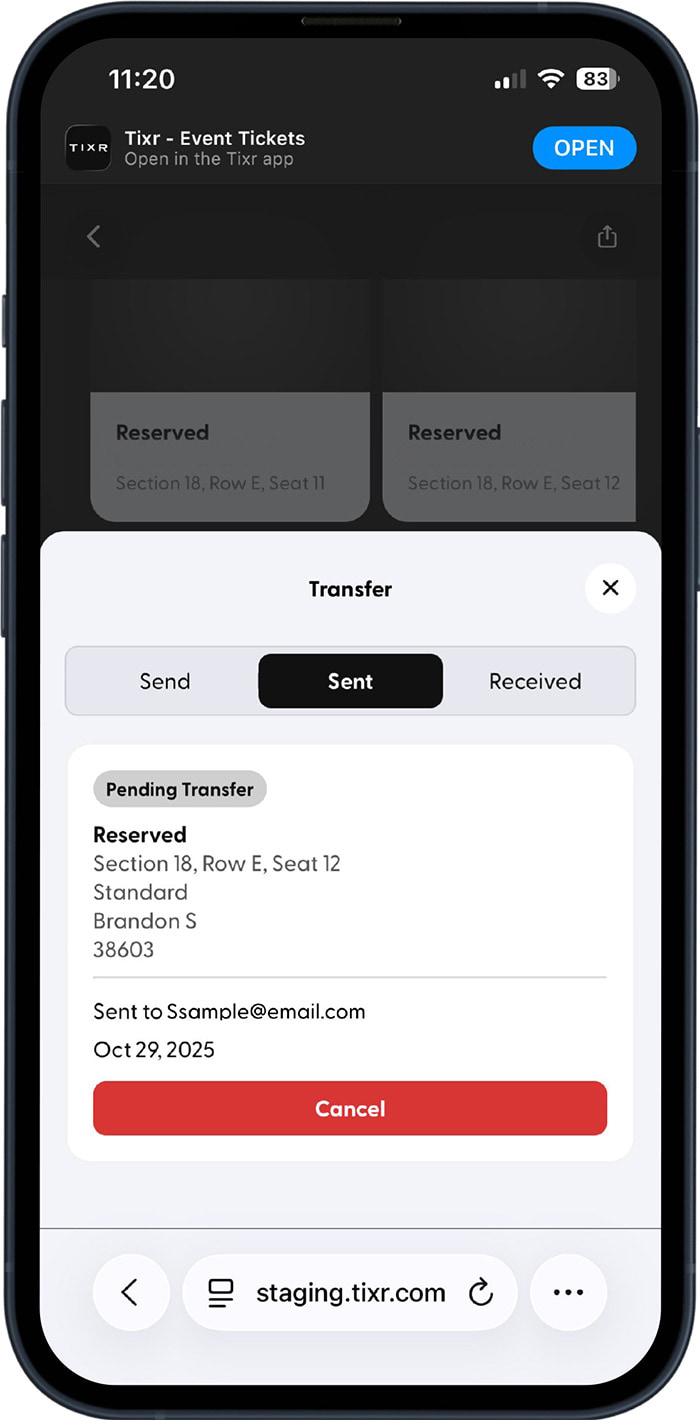
If You Need To Cancel A Ticket Transfer
- Follow the first three steps above to navigate to the match for which you want to cancel the ticket transfer.
- Select “Transfer”
- Navigate to the “Sent” tab and select “Cancel.” (View Screenshot)
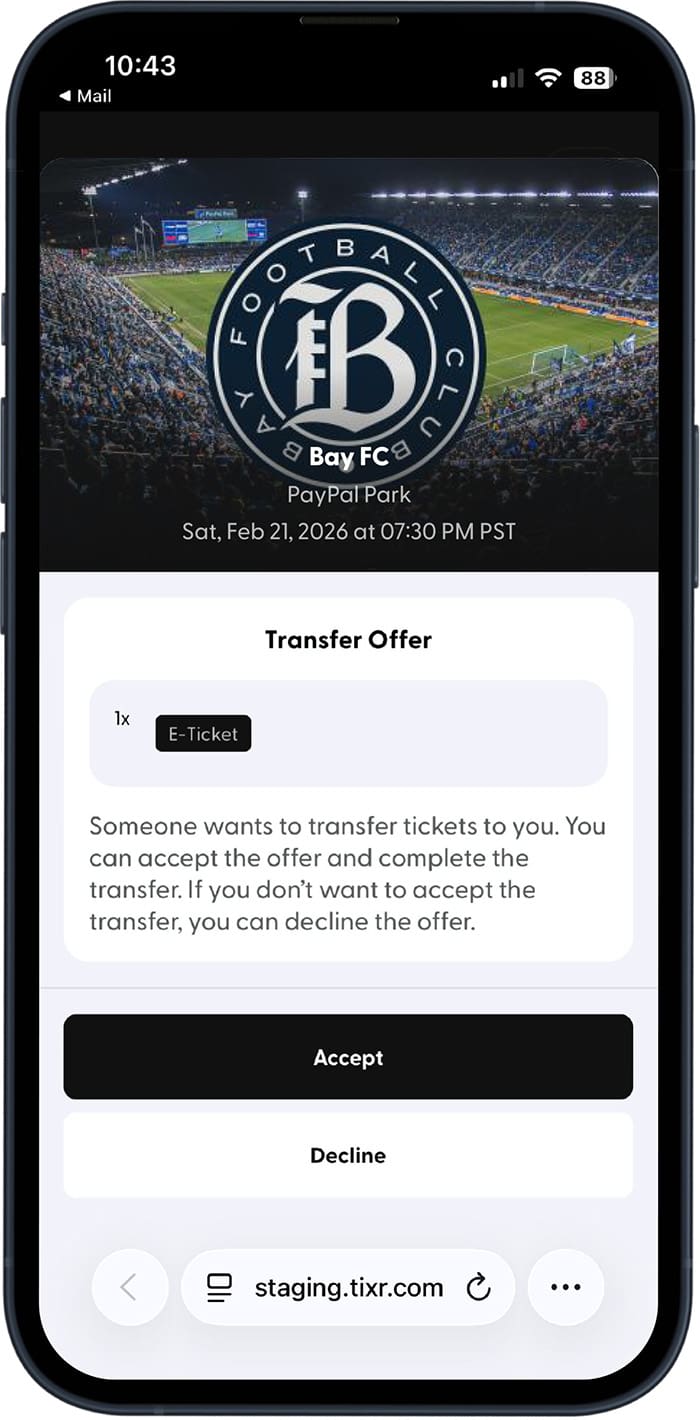
View this video or follow the screenshots below for step-by-step instructions on accepting ticket(s) transferred to you.
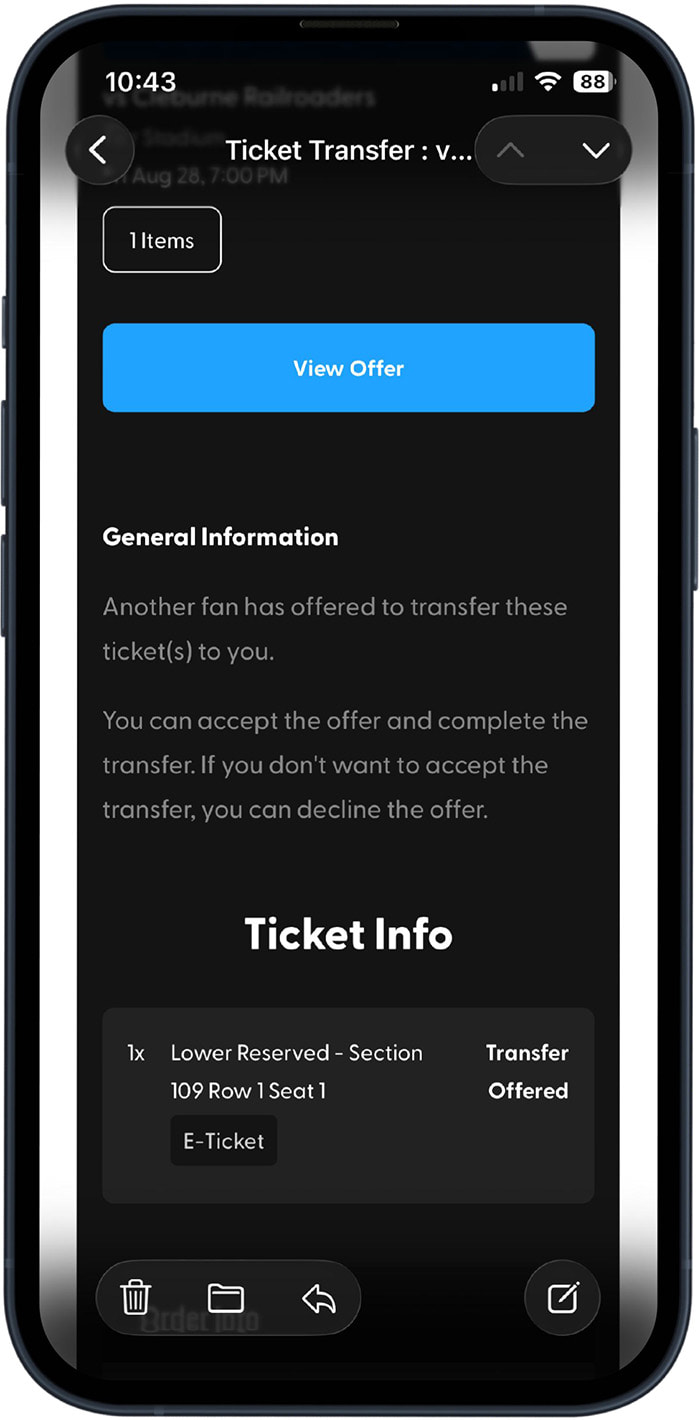
Step 1
Open the email regarding the ticket transfer and select “View Offer.”
Step 2
Sign in to, or create, your Tixr account.
Step 3
Select “Accept” and the tickets will be immediately available in your account.
View this video or follow the screenshots below for step-by-step instructions on these instructions to post your Bay FC tickets for sale.
Step 1
Visit bayfc.com/mytickets and sign in to, or create, your Tixr account.
Step 2
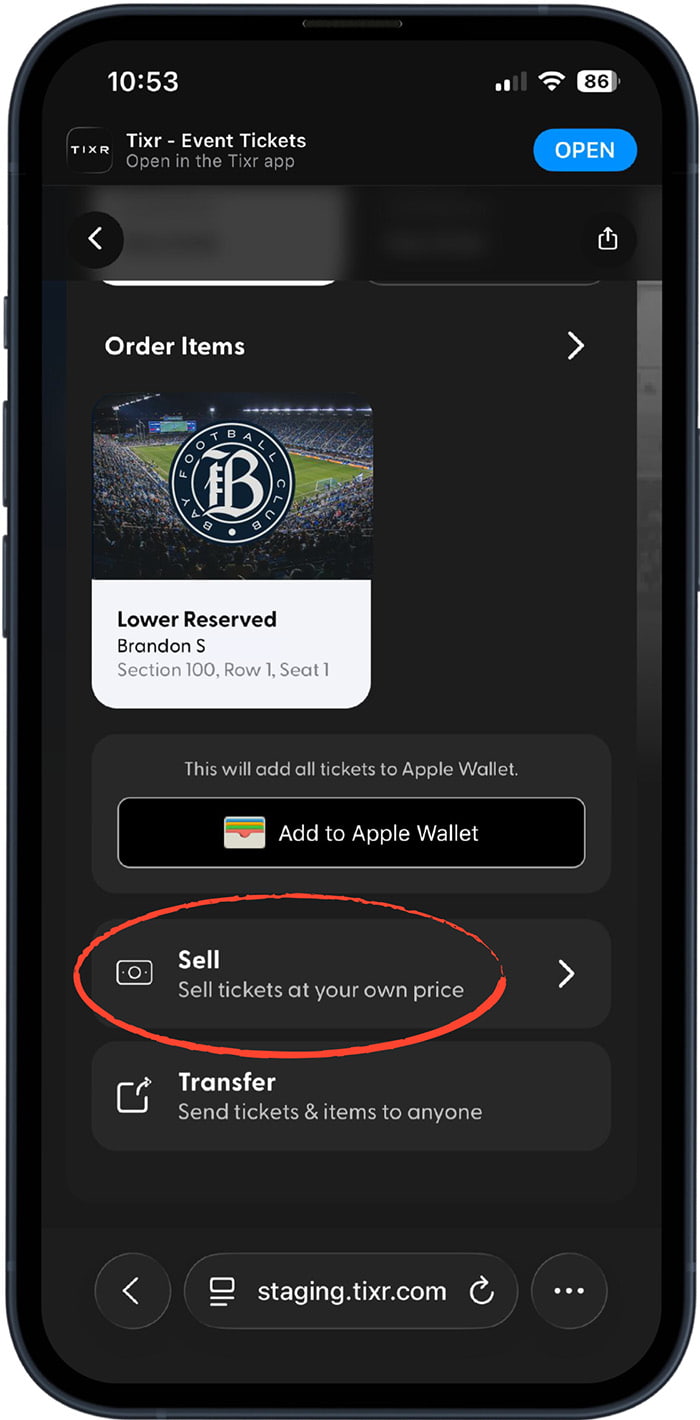
Once signed in, you’ll see a list of all your events/tickets. Select the match for which you want to sell your ticket(s).
Step 3
Select the “Sell” option.
Step 4
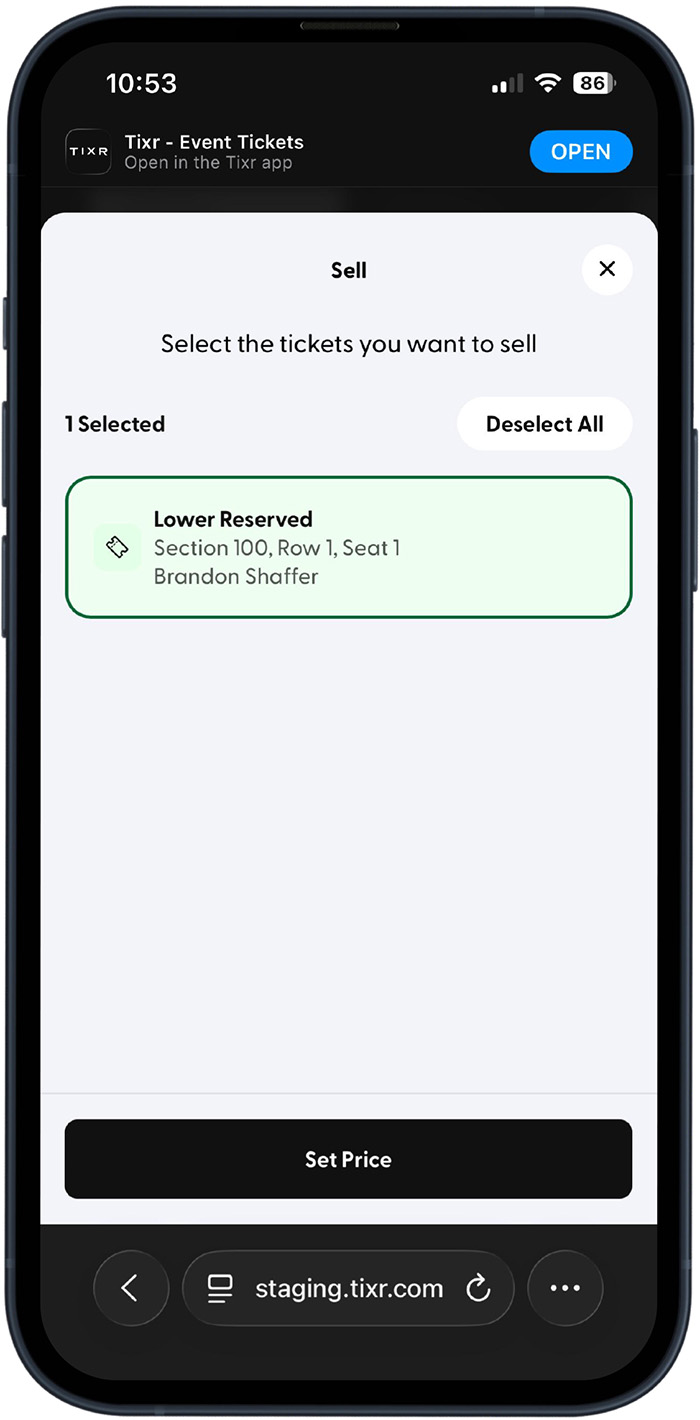
Select the ticket(s) you want to sell and tap “Set Price.”
Step 5
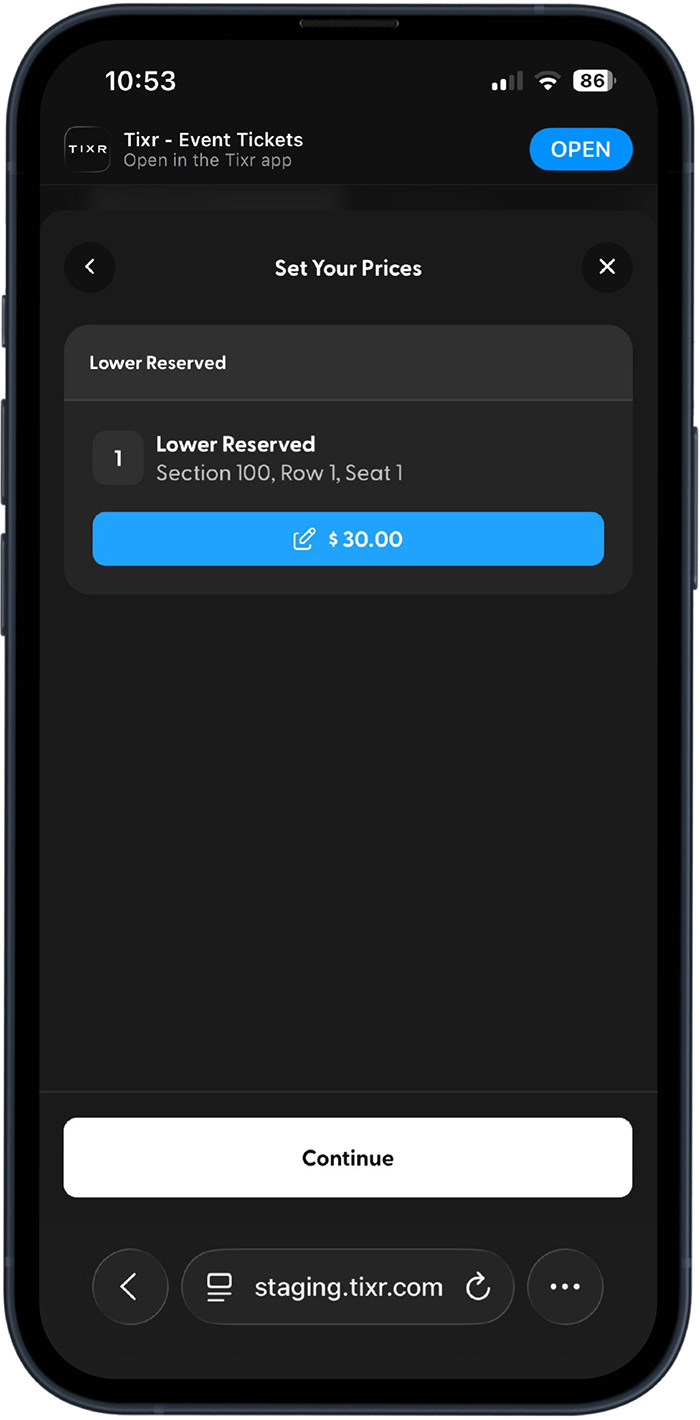
Enter the price you want to sell the ticket(s) for and tap “Continue.”
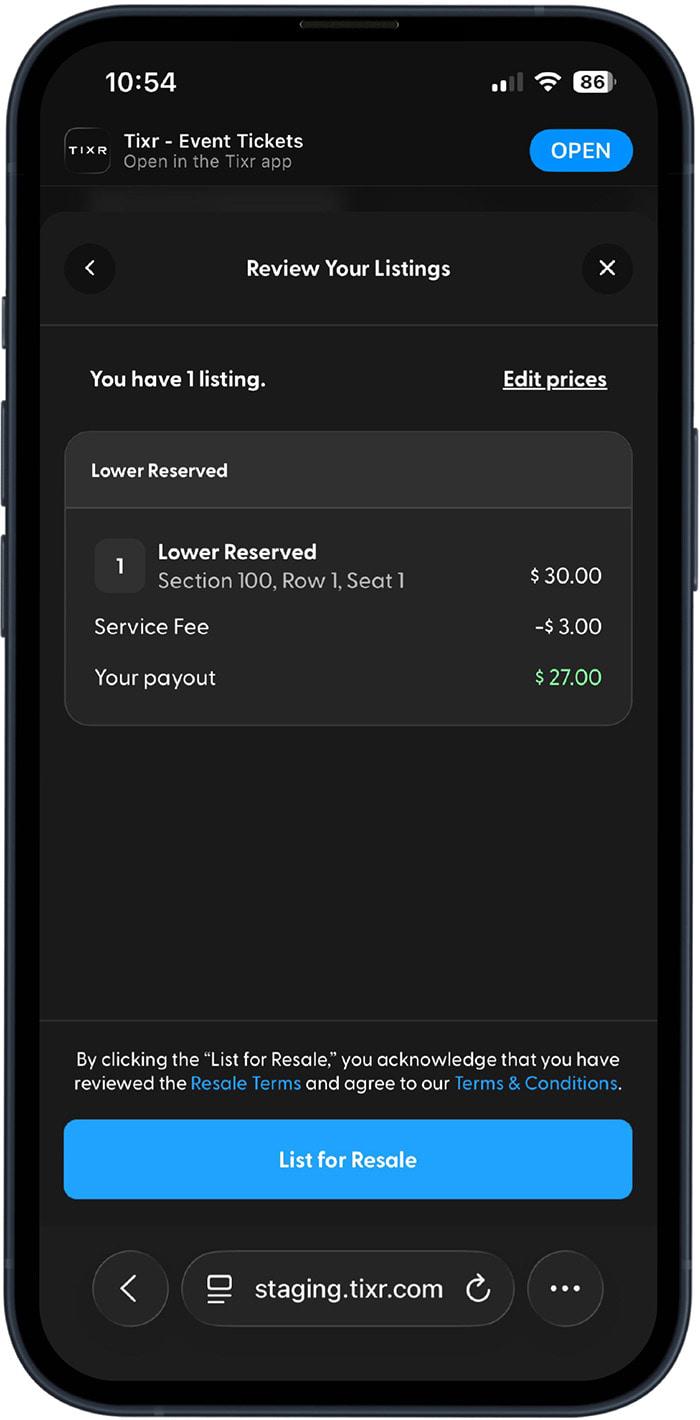
Step 6
Review your ticket listing and tap “List for Resale.”
Once Your Tickets Sell …
- You’ll immediately be notified email and receive payment to your payout account typically three to five days following the event.
- If no payout account has veen set up, you’ll be prompted to set one up to receive payment.
Enjoy Seamless Entry with the Bay FC Mobile App
With mobile entry, your phone is your ticket. Access your tickets on your mobile device to gain seamless entry into every Bay FC home match.


Frequently Asked Questions
- Visit bayfc.com/mytickets
- In the top right-hand corner, click the hamburger menu and click “Sign Up”.
- Enter your name, email address, and create a password in the sign-up window. Then, click “Create Account”.
PLEASE NOTE: In order for us to connect your membership in Ticketmaster to your new Tixr account, you must use the same email address as on your account. - Check your inbox. Look for an email titled “Welcome to Tixr!” Open the email and click “Verify email” to activate your account.
- Complete your profile and click “Save.”
- Log in to your Tixr Account.
- Once you’re logged in, click “Account” under your name. If you have not completed your profile, you will be asked to complete it here.
- On the left-hand side, click “Payment Methods”, then “Add new payment method”.
- Input your payment information in the pop-up window and select “Use as default” before clicking “Submit.”
PLEASE NOTE: You must click “Use as default” to save your card for future payments.
Your current payment plan stays the same. Your payment plan will continue to run on schedule through TicketMaster through the 2026 season. If you would like to make any changes to your payment plan, please contact your Client Service Representative.
No, it will not. You must take action by adding your credit card and saving it as the default payment option.
We use secure payment processing systems that do not allow the end user (Bay FC) to see the full credit card number. Because of this, we are unable to transfer your payment information over.
No, the cost of your membership remains the same for the 2026 season. It is the amount listed on your invoice.
The money you have paid to date is still associated with your account and your 2026 membership.
To ensure we are able to connect your membership to your new account, you must use the email associated with your Ticketmaster account as your email address in Tixr.
If you need to change your email from what was previously used, please contact Bay FC member services at moc.cfyab@secivresrebmem.
No, due to new rotating barcode technology to keep tickets secure, screenshots will not be valid. You must present your mobile ticket on your phone for access into
PayPal Park.
To ensure seamless entry, we highly recommend downloading your tickets to your phone before arriving to the game. Save the tickets to your wallet, as screenshots will not be accepted.
Tickets for all Bay FC games will not include a printable PDF option. Printed PDF tickets WILL NOT be accepted at PayPal Park for admittance.
You can manage your tickets from your computer, but you will need a ticket on your mobile device to enter the game.
For any other ticketing questions, comments or concerns, please contact your Client Service Executive. Alternatively, you can call 833-Go-BayFC or email moc.cfyab@secivresrebmem.